Technology
Mobile Asset Tracking for Low-Connectivity Workflows
Plan mobile asset tracking workflows for low-connectivity areas, QR scans, field audits, shared equipment, and distributed teams.
Capture mobile/offline tracking intent without overpromising unsupported workflows, then route readers into QR setup and mobile inspection guides.
- Inventory Tech Stack Hub · hub overview
- Why Mobile Apps Are Essential for Modern Inventory Control · related article
- Building a Mobile-First Asset Management Strategy for Teams · related article
- Mobile Inspections: How QR Codes Speed Up Field Work · related article
Audience: Small teams scanning assets in storage rooms, offices, job sites, classrooms, and low-connectivity spaces
QR Code Asset Tracking Guide · guide
QR Code Asset Tracking · feature page
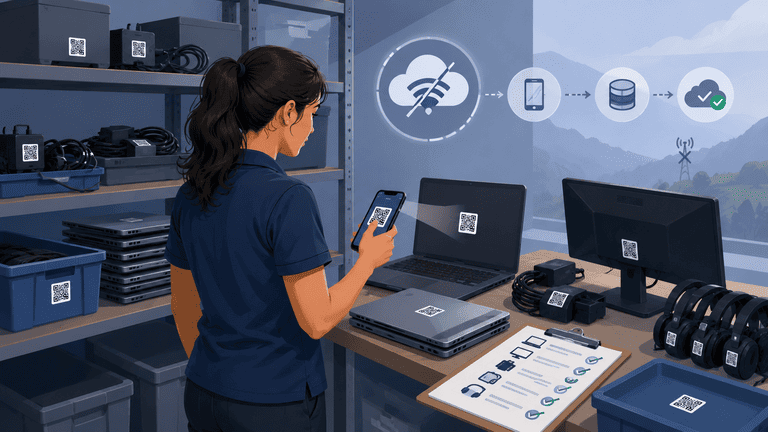
Mobile asset tracking matters when work does not happen at a desk. Teams scan assets in storage rooms, classrooms, basements, job sites, meeting rooms, and home offices. Connectivity is not always reliable, so teams need a practical plan for scanning, verification, and exception review.
TL;DR
- Mobile tracking only works if staff can update records where the asset is.
- Low-connectivity workflow planning reduces missed scans and delayed updates.
- Start with the assets that move most often: laptops, kits, shared equipment, and field gear.
- Keep the workflow simple enough that people use it during real work.
What Low-Connectivity Tracking Should Solve
The goal is not to create another app your team forgets to open. The goal is to capture asset changes at the moment they happen.
Low-connectivity workflows help when staff need to:
- scan assets in storage rooms
- verify items during audits
- check equipment in or out at events
- update asset condition during field work
- record returns when Wi-Fi is weak
- collect evidence before reviewing and updating records
For QR-specific setup, see QR Code Inventory Tracking Setup Guide.
Common Failure Pattern
Many teams say they track assets, but updates happen later:
- Someone moves equipment.
- They plan to update the spreadsheet later.
- A message gets buried.
- The asset record stays stale.
- The next audit becomes detective work.
Mobile tracking reduces that gap. If your team needs true offline queue-and-sync behavior, verify that capability directly during vendor evaluation.
Low-Connectivity Workflow Checklist
| Workflow step | What good looks like |
|---|---|
| Scan | Staff can identify the asset quickly |
| Update | Status, owner, or location can be changed on-site |
| Evidence | Notes or photos can support the update |
| Review | Exceptions are visible after the session |
If your current problem is field inspection speed, read Mobile Inspections with QR Codes.
Best First Use Cases
Laptop and peripheral audits
Scan laptops, docks, monitors, chargers, and adapters by person or room. This keeps verification practical for small IT teams.
Shared equipment returns
Use mobile updates when projectors, cameras, tools, or loaner kits come back. The return should be recorded before the item disappears into a shelf.
Office moves
During a move, mobile updates prevent location drift. Pair this with Office Move Equipment Checklist.
Field work
Teams outside the office can update condition, notes, or location without waiting to return to a desk.
Designing the Mobile Session
A mobile verification session should have a defined start and finish. Otherwise the team ends up with partial updates and unclear ownership.
Use this structure:
| Stage | Action |
|---|---|
| Prepare | Pick one location or category |
| Download or open records | Make sure the team knows what should be checked |
| Scan | Identify each asset physically |
| Update | Mark verified, moved, missing, or needs attention |
| Connection check | Confirm whether updates were captured successfully |
| Review | Resolve exceptions before closing the session |
The review step is important. A scan session is not complete just because someone walked around with a phone. It is complete when missing, moved, or damaged assets have an owner.
What to Track During Mobile Work
Keep the mobile update screen focused. Staff should not be asked to fill out a long form while standing in a hallway or storage room.
Good mobile fields:
- status
- location
- assignee
- condition
- short note
- photo if needed
- last verified date
Fields that require research, accounting review, or procurement details should usually be handled later by an admin.
Connectivity Reality Check
Before depending on mobile workflows in weak-signal areas, test the actual locations:
- basement storage
- classrooms
- warehouse corners
- coworking rooms
- job sites
- home office return points
- event spaces
If connectivity is inconsistent, define how staff should work: test the scan flow, keep a manual fallback, and review exceptions before closing the audit. If full offline sync is required, include it as a vendor-evaluation requirement.
Mistakes to Avoid
Making mobile updates optional
If staff can choose between updating now and "telling someone later," records will drift again.
Scanning without ownership rules
A scan proves the item exists. It does not prove who is responsible. Pair scanning with owner, status, and location updates.
Letting exceptions stay unresolved
Every mobile session should end with a short exception list. Missing items, damaged equipment, and unclear locations need follow-up.
Starting with too many locations
Start with one storage room or one asset category. Expand only after the workflow is stable.
FAQ
Is offline tracking always required?
No. If your work happens in reliable office Wi-Fi, online mobile scanning may be enough. True offline support matters most when audits, field work, or storage areas have poor connectivity, and it should be verified before rollout.
Should every asset be scanned by phone?
No. Start with assets that move, get borrowed, or are expensive to replace. Static furniture and low-value items may not need the same workflow.
Do Not Overcomplicate the Rollout
Start with one category and one workflow:
- category: laptops and peripherals
- workflow: monthly verification
- owner: one IT lead
- result: missing, verified, needs attention
Once the team uses that reliably, expand to shared equipment or field gear.
Buyer Questions
Ask vendors:
- Can staff scan and update assets from a phone?
- What happens when the connection is weak?
- Can updates be reviewed after a session?
- Can we export audit results?
- Can QR and barcode workflows coexist?
For a broader platform view, see Mobile Apps in Inventory Control.
Next Step
Choose one high-movement asset group, label it, and run a mobile verification session this week. The outcome should be simple: verified, missing, moved, or needs attention.
If the workflow is easy enough for that session, it can scale.
Methodology
- This page was reviewed against adjacent InvyMate workflow pages and the external references listed below.
- Recommendations are written for practical asset-tracking operations and are intended to stay specific about workflow scope, tradeoffs, and implementation boundaries.
- This page was reviewed as a workflow-technology explainer and is intended to stay practical about operational adoption rather than broad trend language.
Related Standards and Guidance
- CIS Critical Security Control 1: Inventory and Control of Enterprise Assets · Center for Internet Security
- NIST SP 800-171 Rev. 3 · NIST
Try InvyMate
Start tracking assets with QR codes and scheduled audits.