Digital Transformation
Spreadsheet to Asset Tracking Migration Plan
Move from spreadsheets to asset tracking software with a focused migration plan for CSV cleanup, imports, labeling, and verification.
Own migration-plan intent and route readers into templates, import/export workflows, QR tagging, and first audit verification.
- Digital Transformation for Inventory Hub · hub overview
- IT Asset Inventory List Template for Small IT Teams · related article
- IT Asset Register Excel Alternative for Small IT Teams · related article
- From Spreadsheets to Smart Assets: Migration Playbook · related article
Audience: Small teams moving asset records from Excel or Google Sheets into a live hosted system
Spreadsheet Inventory Limitations · guide
Import and Export · feature page
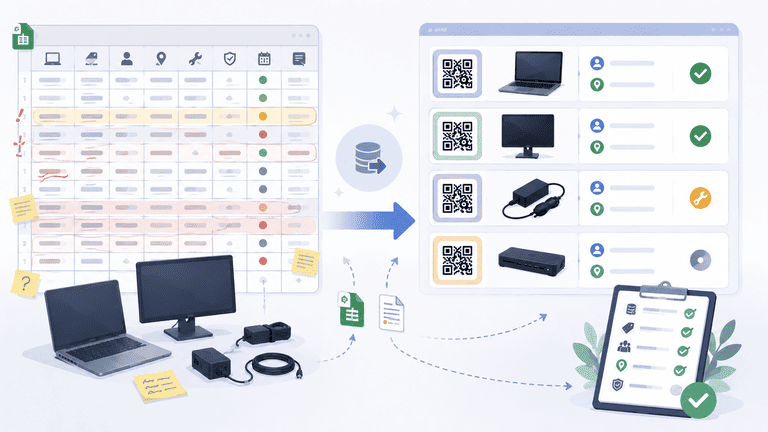
Moving from a spreadsheet to asset tracking software is not just an import task. The real migration is turning a static list into a working process for ownership, returns, audits, and updates.
TL;DR
- Clean the spreadsheet before import.
- Start with one asset category, not the whole company.
- Preserve only fields that support ownership, audits, or reporting.
- Run a verification session after import.
Why Spreadsheet Migrations Fail
Most failed migrations start with a simple mistake: importing bad data and expecting software to fix it.
Common issues include:
- duplicate asset names
- missing serial numbers
- unclear owners
- stale locations
- mixed categories
- notes used as status fields
- retired assets still listed as active
Before migration, read Why Spreadsheets Fail at Asset Tracking.
Migration Scope
Start with one group:
- laptops and peripherals
- shared office equipment
- school devices
- monitors and docking stations
- tools or room equipment
Do not start with every item your organization owns. A smaller pilot teaches you which fields, statuses, and labels matter.
Clean Your Spreadsheet
Use this pre-import checklist:
| Field | Cleanup rule |
|---|---|
| Asset name | Use consistent names |
| Category | Keep categories broad at first |
| Serial number | Fill where available |
| Owner | Use one person or team field |
| Location | Standardize site and room names |
| Status | Use a short approved list |
| Notes | Move important notes into real fields |
For a starting template, use IT Asset Inventory List Template.
Import Workflow
- Export your spreadsheet as CSV.
- Remove duplicates and retired assets.
- Map columns to the new system.
- Import one category.
- Review sample records manually.
- Assign assets to people or locations.
- Run a verification session.
The verification session is the point where migration becomes operational.
Column Mapping Example
| Spreadsheet column | Asset tracking field | Cleanup note |
|---|---|---|
| Item | Asset name | Make names consistent |
| Type | Category | Keep broad categories first |
| Serial | Serial number | Remove duplicates |
| User | Assignee | Use current employee names |
| Office | Location | Standardize site names |
| Notes | Notes or structured fields | Split important values |
| Returned? | Status | Convert to approved statuses |
The goal is not to preserve every spreadsheet column. The goal is to preserve the fields that support tracking, audits, and follow-up.
Pilot Migration Plan
A practical two-week plan:
| Day | Work |
|---|---|
| 1 | Pick the asset category |
| 2 | Clean duplicate rows |
| 3 | Standardize category and location names |
| 4 | Map fields |
| 5 | Import a sample |
| 6-7 | Fix mapping issues |
| 8 | Import the full pilot group |
| 9 | Assign owners |
| 10 | Label priority assets |
| 11-12 | Run verification |
| 13 | Resolve exceptions |
| 14 | Decide what to migrate next |
This pace is realistic for a small team because it leaves time for cleanup.
What to Label First
Do not label everything on day one. Label assets that move, get borrowed, or are expensive to replace:
- laptops
- monitors
- chargers and docks
- projectors
- cameras
- loaner kits
- shared tools
Use Asset Tags With QR Codes for Small IT Teams for label planning.
Verification Session
After import, run a short verification session before declaring the migration successful.
For each pilot asset, confirm:
- the asset exists physically
- the serial or identifier matches
- the owner is current
- the location is current
- the status is correct
- the asset should remain active
- the record has enough detail for the next audit
This is where many spreadsheet migrations improve. The import moves data into the system. Verification turns that data into a trustworthy operating record.
After Import
Within the first two weeks, check:
- records with no owner
- assets with no location
- duplicate serial numbers
- items marked active but not found
- items assigned to former employees
- categories with inconsistent names
These checks prevent the new system from becoming another stale list.
Migration Mistakes to Avoid
Importing everything at once
Large imports hide problems. Start with one category and learn from it.
Keeping old statuses
Spreadsheet statuses often grow organically. Replace them with a short controlled list.
Ignoring former employees
Assets assigned to former employees are common. Clean those records before import or flag them as exceptions.
Treating import as the finish line
Importing data is not the migration. The migration is complete only after assets are assigned, verified, and used in a real workflow.
What to Do With Unclear Records
Do not block the migration because a few records are incomplete. Create a clear exception process:
| Problem | Action |
|---|---|
| Missing serial number | Mark for physical verification |
| Unknown owner | Assign to a team queue or location until confirmed |
| Unknown location | Add to audit list |
| Duplicate asset | Keep the best record and archive the duplicate |
| Possibly retired | Move to review before active import |
The key is to avoid hiding uncertainty. If the spreadsheet is unclear, the new system should make that uncertainty visible so it can be resolved.
FAQ
Should we keep the old spreadsheet?
Keep a backup, but stop using it as the active source of truth after migration. Two active systems create drift.
How clean does the data need to be?
Clean enough to support the first workflow. You do not need perfection, but owner, status, category, and location should be trustworthy for the pilot group.
Next Step
Choose one category and migrate only that group. If the team can import, assign, label, and verify it in two weeks, repeat the process for the next category.
Migration works best when each step proves the workflow, not just the data import.
Methodology
- This page was reviewed against adjacent InvyMate workflow pages and the external references listed below.
- Recommendations are written for practical asset-tracking operations and are intended to stay specific about workflow scope, tradeoffs, and implementation boundaries.
Related Standards and Guidance
- CIS Critical Security Control 1: Inventory and Control of Enterprise Assets · Center for Internet Security
- NIST SP 800-171 Rev. 3 · NIST
Try InvyMate
Start tracking assets with QR codes and scheduled audits.