Best Practices
Photo-Based Asset Tracking for Small Teams
Use photos in asset tracking records to identify equipment, document condition, support audits, and confirm complete returns.
Capture photo-based tracking intent while keeping photos tied to identification, condition, and evidence rather than replacing labels or serials.
- Asset Lifecycle Management Hub · hub overview
- Asset Record Imaging and Document Attachments · related article
- Inventory Audit Checklist: What to Verify and How Often · related article
- Laptop and Peripheral Kit Checklist for Offboarding Returns · related article
Audience: Small IT and operations teams using photos to identify assets, document condition, and support returns or audits
Asset Inventory Audit Checklist · guide
Inventory Sessions · feature page
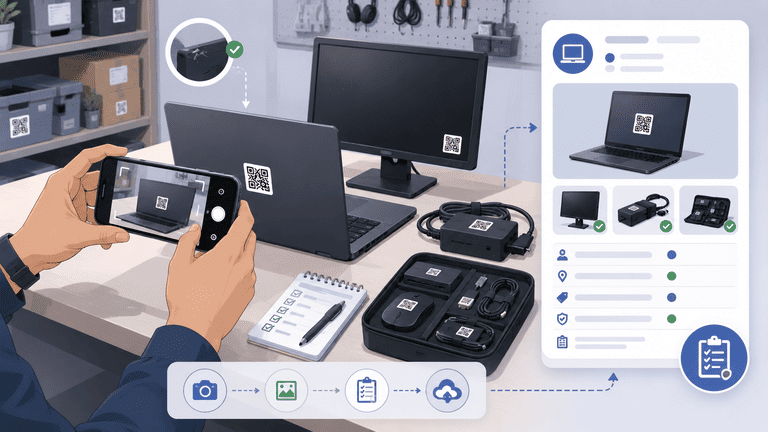
Photo-based asset tracking helps teams identify equipment quickly, confirm condition, and reduce confusion when many items look similar. Photos are not a replacement for serial numbers or QR labels, but they make asset records easier to trust.
TL;DR
- Use photos to identify assets, document condition, and support audits.
- Do not rely on photos alone for unique identification.
- Pair photos with QR labels, serial numbers, status, and owner fields.
- Keep photo rules simple so staff actually upload useful images.
When Photos Help
Photos are useful when assets are easy to confuse:
- identical laptop models
- monitors without visible serial numbers
- chargers and docking stations
- room equipment
- tools in shared spaces
- damaged or repaired items
Photos also help non-technical staff confirm that the record matches the physical item.
For broader attachment workflows, see Asset Images and Document Attachments.
What to Photograph
Use a simple standard:
| Photo | Purpose |
|---|---|
| Front or main view | Helps recognize the asset |
| Label or QR location | Shows where the tag is placed |
| Serial plate if visible | Supports verification |
| Damage or condition issue | Documents repair need |
| Kit contents | Confirms complete return |
Do not require too many photos. Staff will skip the process if it feels like paperwork.
Photos and Audits
During audits, photos help answer:
- is this the same item?
- is the label still readable?
- is the condition acceptable?
- is the kit complete?
- does the asset need repair?
Pair photo evidence with Inventory Audit Checklist.
Photo Standards
Set a standard before asking staff to upload images.
| Asset type | Recommended photo |
|---|---|
| Laptop | Top or asset tag area |
| Monitor | Back label area and front view if needed |
| Docking station | Port side or asset tag area |
| Charger | Label or connector type |
| Kit | Full kit contents together |
| Damaged item | Clear photo of the issue |
The standard should fit the work. A team should not need five photos for every low-risk item.
Photos and Condition Tracking
Photos are strongest when paired with condition values:
- good
- worn
- damaged
- needs repair
- retired
The photo gives context. The condition field makes the record reportable. Without a structured condition, teams end up searching images manually.
For lifecycle decisions, see Asset Lifecycle Records.
Where Photos Fit in the Record
A useful asset record should not make people choose between structured data and visual evidence. Use both.
| Record element | Role |
|---|---|
| Serial number | Confirms the unique item |
| QR or asset tag | Speeds lookup during audits |
| Owner or location | Shows responsibility |
| Status | Shows what should happen next |
| Condition | Makes the item reportable |
| Photo | Adds visual confirmation |
This matters because many small-team assets look identical. Ten monitors may have the same model name. A photo can help staff confirm the right item, but the serial number and tag should still be the source of truth.
Example Photo Workflow
For laptops and peripherals, keep the process short:
- Create or open the asset record.
- Add the serial number or identifier.
- Add the QR or label reference.
- Upload one recognition photo.
- Upload a damage photo only if condition is not good.
- Assign the asset or place it in storage.
- Review missing photos during the next audit.
This workflow avoids turning every update into a documentation project. The photo exists to support recognition, returns, and condition checks.
Photos and Offboarding
Offboarding is a strong use case. A laptop kit may include:
- laptop
- charger
- docking station
- bag
- adapter
- security token or accessory
A photo of the returned kit can reduce later disputes and make missing accessories obvious.
Use Laptop and Peripheral Kit Checklist for the return workflow.
Privacy and Data Hygiene
Avoid uploading photos that include unnecessary personal information:
- employee documents
- visible passwords
- private desk contents
- unrelated screens
- personal items
The photo should document the asset, not the person or workspace. This keeps records cleaner and reduces privacy risk.
What Photos Cannot Solve
Photos do not replace:
- serial numbers
- QR labels
- clear owner fields
- status updates
- audit history
A photo tells you what the item looks like. It does not tell you who is responsible unless the record is maintained.
Common Mistakes
Using photos instead of labels
Photos help recognition. Labels and serials provide identification.
Uploading inconsistent photos
If every staff member photographs a different angle, photos become less useful. Use a simple standard.
Keeping damage photos outside the record
Damage evidence in chat or email gets lost. Put it on the asset record or reference it clearly.
Photographing too much
Too many required photos slow the workflow. Use photos where they support identification, condition, return evidence, or audit confidence.
Setup Rules
- Require one photo for high-value assets.
- Add condition photos only when needed.
- Use QR labels for fast lookup.
- Keep kit photos for offboarding returns.
- Review missing photos during audits.
Review Cadence
Photo quality should be reviewed during normal asset work, not as a separate project.
During audits, check whether high-value assets have a useful recognition photo. During offboarding, check whether returned kits have complete evidence. During repair review, check whether damage photos explain why the item is marked needs repair.
If a photo does not help someone identify, verify, repair, return, or audit the asset, it probably does not need to be required.
Next Step
Pick one asset category and define one required photo. For laptops, use the laptop lid or asset tag area. For kits, use a full kit photo at return.
The goal is faster recognition and cleaner evidence, not a photo library for its own sake.
Methodology
- This page was reviewed against adjacent InvyMate workflow pages and the external references listed below.
- Recommendations are written for practical asset-tracking operations and are intended to stay specific about workflow scope, tradeoffs, and implementation boundaries.
Related Standards and Guidance
- CIS Critical Security Control 1: Inventory and Control of Enterprise Assets · Center for Internet Security
- NIST SP 800-171 Rev. 3 · NIST
Try InvyMate
Start tracking assets with QR codes and scheduled audits.