Best Practices
Asset Tags With QR Codes: Types and Placement
Choose asset tags with QR codes for small IT teams: compare label types, place tags on laptops and peripherals, standardize IDs, and verify labels during
TL;DR
- Use this page for laptop and peripheral QR tagging rules in small IT teams, not for broad industrial label-engineering decisions.
- Standardize asset IDs, keep peripherals in clear kit logic, and verify tags during regular audit sessions.
- Use the broader placement guide only when you need material, size, or mixed-environment label decisions.
Keep this page focused on laptop and peripheral tagging workflow, naming, kits, and verification rather than broad physical-label engineering.
- IT Asset Management Hub (Small IT Teams) · hub overview
- QR Code Tag Placement, Durability, and Size for Teams · related article
- Employee Offboarding Equipment Return Checklist for Laptops · related article
- IT Asset Audit Checklist: 60-Minute Runbook for Teams · related article
Audience: Small IT teams tagging laptops, docks, chargers, and employee kits
First 7 Days IT Asset Tracking Implementation · guide
QR Label Configuration · feature page
For small IT teams, asset tags with QR codes should use a stable asset ID that can be scanned during handoffs and audits without exposing employee data. Use this guide to choose the right tag type, place it correctly, and set up a repeatable workflow for laptops, docks, chargers, adapters, and shared kits.
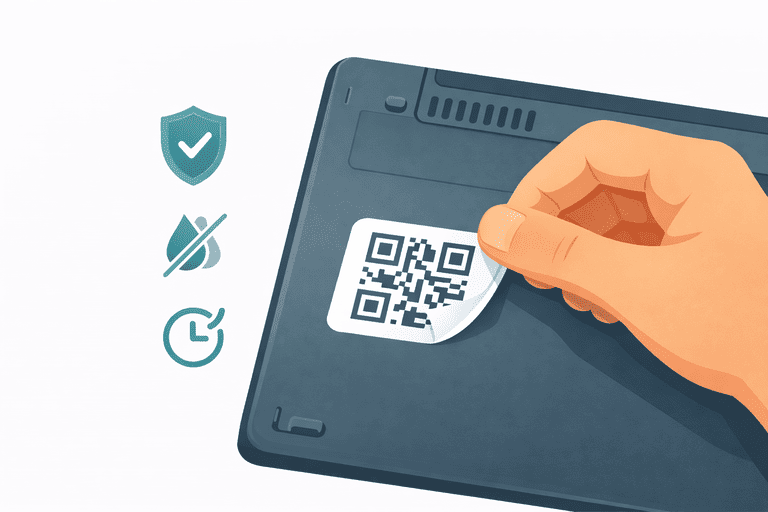
This guide is for choosing and rolling out asset tags for laptops and peripherals in a small IT team. It’s not for warehouse stock, consumables, or reordering workflows.
If you need the broader physical-label guide for material choice, QR size, and surface durability across many environments, use: Tagging Best Practices: QR Code Placement, Durability, and Size.
QR Asset Tags for Laptops: Quick Decision
For most small IT teams, start with QR asset tags for laptops, docks, chargers, and shared kits that move often or create return follow-up. Use one stable asset ID per record, place the label where staff can scan it quickly, and verify the tag during the normal audit or handoff workflow.
- Use this page for small-team tagging workflow rules, not for broad industrial label engineering.
- Start with assets that move or create return follow-up: laptops, docks, chargers, and shared kits.
- Put QR labels where laptops and peripherals can be scanned fast during handoffs and audits.
- Use a short, stable asset ID on the tag and verify it quarterly so labels and records stay aligned.
What to Verify Before Scaling QR Asset Tags
- First scope: the initial category has enough movement or return risk to justify labeling.
- Label identity: each tag uses a stable asset ID that matches one record.
- Placement: staff can scan the label without opening the device or moving the whole kit.
- Kit logic: docks, chargers, and adapters are either separate assets or explicitly tracked as a kit.
- Verification: the team has a repeatable scan or audit step to catch damaged labels and stale assignments.
Quick decision: what should receive a QR asset tag first?
| Asset type | Start with | Verify during the first pass |
|---|---|---|
| Laptops and phones | A visible, durable label with one stable ID | Scan, assignee, location, and status |
| Docks and monitors | Separate tags when they move independently | Whether the item is assigned to a person, room, or kit |
| Chargers and adapters | Kit tracking or separate tags based on loss risk | Whether the accessory returns with the primary device |
| Shared equipment kits | One tag per item plus a clear kit relationship | Completeness at checkout, return, and audit |
This keeps the first rollout tied to an observable workflow instead of a broad labeling project.
Start here:
- Hub: IT Asset Management Hub
- Template: IT Asset Register Template (CSV)
- Verification: IT Asset Audit Checklist (for Small IT Teams)
What This Page Covers vs the Broader Label Guide
Use this page when you need:
- laptop and peripheral tagging rules
- small-team naming and kit logic
- audit-friendly placement for office IT assets
- a rollout that works with existing employee device workflows
Use the broader placement guide when you need:
- QR material selection by environment
- code size guidance by scanning distance
- outdoor, workshop, medical, or chemical-resistance considerations
- long-term durability testing across many asset types
Types of QR Asset Tags
The QR code is only one part of an asset tag. Choose the physical label construction based on the surface, cleaning routine, and risk of removal.
| Tag type | Best fit | Trade-off to check |
|---|---|---|
| Paper or laminated labels | Indoor devices used in a dry office | Lower cost, but less resistant to moisture and abrasion |
| Polyester labels | Laptops, docks, and chargers that are handled or wiped regularly | More durable, but the adhesive still needs to match the surface |
| Tamper-evident labels | Shared or high-value equipment where removal should be visible | Removal evidence can make replacement more involved |
| Metal or industrial labels | Equipment exposed to harsher conditions or expected to stay tagged for a long time | Higher cost and stricter surface and adhesive requirements |
For most office IT equipment, start with a readable laminated or polyester label and test it on the actual device surface. Use the broader QR code placement, durability, and size guide when the environment is more demanding.
What to Put on a QR Asset Tag
A tag should identify the asset, not expose it.
Recommended:
- Asset ID (e.g.,
IT-0123) - Optional: a short internal prefix (
QR-0123)
Avoid printing:
- employee names
- emails
- purchase cost
- anything that creates privacy or security risk
If you need tight access controls, use RBAC and audit trails: Role-Based Permissions in Inventory Systems.
QR Placement Rules for Laptops (Office IT Workflow)
Good placement is:
- visible without opening the laptop
- not on a curved edge that peels
- not on a heat vent
- not on a surface that gets wiped constantly
Practical placements:
- underside (flat area, away from vents)
- palm rest corner (if you can avoid wear)
- near hinge area (if flat and not moving)
Avoid:
- edges and corners (peel first)
- textured surfaces (poor adhesion)
- areas that get hot (adhesive fails)
For the full physical-label guide on size, material, contrast, and durability, see: Tagging Best Practices: QR Code Placement, Durability, and Size.
Peripherals: Treat Them Like First-class Assets (or a Kit)
Peripherals are where money leaks:
- docks
- chargers
- adapters
- spare keyboards/mice
Two workable approaches:
- Tag them as separate assets (best long-term)
- Track them as part of a kit (laptop + peripherals) and verify at offboarding
Offboarding checklist: Offboarding Equipment Return Checklist.
30-Minute Tagging Rollout for Small IT Teams
Use this when you need to start tagging this week instead of planning a large project.
0-10 min: define the first scope
- Choose one category: laptops only, or laptops + docks.
- Confirm the naming format and asset ID pattern.
- Decide whether peripherals are standalone assets or part of a kit.
10-20 min: print and place pilot labels
- Tag 10-20 active assets.
- Keep placement consistent across similar devices.
- Record any surfaces where adhesion or scan speed looks weak.
20-30 min: verify the workflow
- Scan each tagged asset once.
- Confirm assignment, location, and naming look correct.
- Capture a short list of re-tag or rename fixes before scaling.
QR vs NFC (When to Consider NFC)
For many small IT teams, QR is a practical default starting point:
- usually lower-cost labels
- scanning with common phone cameras in many workflows
- fast rollout
Consider NFC when:
- you need better durability
- you want tap-to-scan behavior
- the extra cost is justified
Comparison: NFC vs QR Code Tracking.
Naming Standard (So Reporting and Audits Work)
Pick a naming convention and don’t improvise.
Example:
Laptop - Dell Latitude 5440Docking Station - Dell WD19Charger - USB-C 65W
Why it matters:
- consistent reporting (asset classes)
- fewer duplicates
- faster audits
If you want to structure categories for reporting without overcomplicating it: Asset Class Segmentation for Reporting: A Practical Guide.
Verification: How Tags Stay “True”
Tags don’t solve tracking by themselves. Verification does.
Quarterly workflow:
- scan or verify assets
- reconcile mismatches (assignment/location/status)
- replace damaged labels
Checklist: IT Asset Audit Checklist (for Small IT Teams).
If you want the workflow built-in: Inventory sessions.
FAQ
Should the QR code encode all asset details?
No. Encode a stable ID and keep details in your system. It’s easier to change records than reprint labels.
What label material should we use?
Use durable labels appropriate for cleaning and wear (laminated or polyester). The exact choice depends on environment; the key is consistency and replacement cadence.
How do we handle privacy for employee assignments?
Don’t print employee info on tags. Keep assignments behind permissions. If you need role controls: Role-Based Permissions in Inventory Systems.
What’s the fastest rollout plan?
Start with laptops + docks/chargers, apply labels, import the register, then run a first verification session. Template: IT Asset Register Template (CSV).
How InvyMate Helps
InvyMate supports a tag → assignment → verification loop:
- QR labeling workflow
- assignment history
- audit-ready change logs
- inventory sessions for fast verification
Start here: Asset tracking built for small IT teams.
Related reading
- IT Asset Register Template (CSV)
- Offboarding Equipment Return Checklist
- IT Asset Audit Checklist (for Small IT Teams)
- NFC vs QR Code Tracking
- Asset Tags With QR Codes for Small IT Teams Overview
- Tagging Best Practices: QR Code Placement, Durability, and Size
- IT Asset Register Excel Alternative for Small IT Teams
Methodology
- This guide was reviewed as the narrow small-team workflow page for tagging laptops, docks, chargers, and peripheral kits.
- It is meant to complement, not duplicate, the broader QR placement/material guide and the general QR tagging overview.
- The refresh prioritizes IT asset tagging best practices, QR asset tags, first-scope selection, kit logic, and verification criteria for laptops and peripherals.
References
- NIST SP 800-171 Rev. 3, CM-08 System Component Inventory · NIST
- CIS Controls: Inventory and Control of Enterprise Assets · Center for Internet Security
- GS1 Digital Link Standard · GS1
FAQ
Is this the main page for QR tag materials and sizing?
No. This page is for small-team laptop and peripheral tagging workflow. Use the QR placement and durability guide when you need material, size, or cross-environment label decisions.
Should small IT teams tag chargers and docks separately?
Usually yes, unless your team can reliably manage them as a kit. The right choice depends on whether accessories are frequently reassigned or often lost during returns.
Try InvyMate
Start tracking assets with QR codes and scheduled audits.